Advanced
The Advanced settings tab contains options for app behavior, text output tweaks, history management, and experimental features. Access these in Settings > Advanced. For paste methods and typing tools, see the dedicated Paste Methods page.
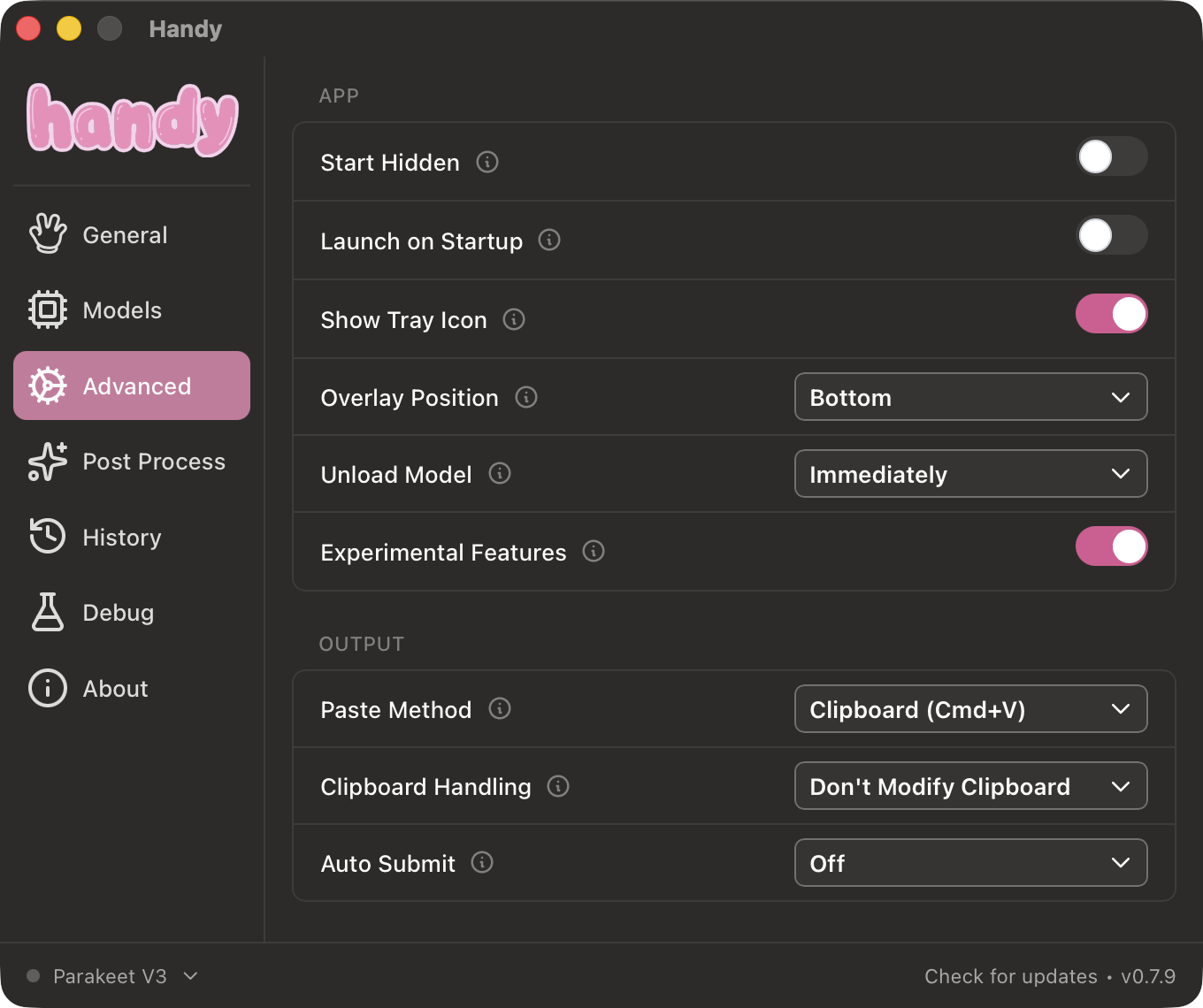
App
Start Hidden
Launch Handy directly to the system tray without opening the main window. Useful if you want Handy running in the background at all times.
Launch on Startup
Automatically start Handy when you log in to your computer.
Show Tray Icon
Display the Handy icon in the system tray. When enabled, you can right-click the tray icon to access quick actions like unloading the model.
Overlay Position
Control where the visual feedback overlay appears during recording and transcription.
- Bottom - Overlay appears at the bottom of your screen
- Top - Overlay appears at the top of your screen
- None - No overlay shown
On Linux, None is recommended because the overlay can steal focus from the target window and prevent pasting.
Overlay States
The overlay shows the current state:
- Recording - Handy is listening to your microphone
- Processing… - Transcription is running (and post-processing, if enabled)
Note: The (x) button on the overlay cancels the recording and discards all audio. It does not stop and transcribe. To stop recording and get your transcription, press the keyboard shortcut again.
Cancelling a Recording
If you start recording by accident, you can cancel:
- Press
Escapewhile recording to cancel without transcribing - Click the (x) button on the overlay
- The overlay will disappear and nothing will be pasted
You can customize the cancel shortcut in the Debug settings (not available on Linux).
Unload Model
Automatically free GPU/CPU memory when the model has not been used for a specified time, ranging from immediately to after 1 hour. Set to “Never” to always keep the model loaded in memory, or “Immediately” to free memory as soon as transcription finishes. This is useful if you run other GPU-intensive applications and want Handy to release memory when idle. You can also right-click the system tray icon and select “Unload Model” to free memory manually.
Output
Auto Submit
Automatically send a key combination after text insertion. Useful for chat apps and command lines where you want to send immediately after dictating.
Options:
- Off - No auto-submit (default)
- Enter - Simulates pressing Enter
- Cmd+Enter - For macOS apps where Cmd+Enter sends
- Super+Enter - For Windows/Linux apps
- Ctrl+Enter - For apps where Ctrl+Enter sends (e.g., some chat apps)
Clipboard Handling
Control what happens to your clipboard after Handy pastes text.
- Don’t Modify Clipboard - Handy restores your previous clipboard contents after pasting. Your clipboard history is preserved.
- Copy to Clipboard - Handy leaves the transcription in your clipboard after pasting. Useful if you want to paste the same text again elsewhere.
Transcription
Custom Words
Add words that are frequently misheard during transcription. Handy will automatically correct similar-sounding words to match your list. This is useful for names, jargon, or technical terms the model gets wrong. This is very imperfect. If you want better results the experimental post processing feature is probably your best bet.
Examples:
| Misheard | Corrected To |
|---|---|
| ”handy" | "Handy" |
| "astro js" | "Astro.js" |
| "c j" | "CJ” |
You can adjust how aggressively corrections are applied using the Word Correction Threshold in the Debug settings.
Append Trailing Space
When enabled, Handy adds a space after the pasted transcription. Convenient for continuous dictation where you want a space between consecutive transcriptions.
History
History Limit
Set the maximum number of history entries to keep. Older entries are removed when the limit is reached. Set this to 0 to disable history entirely.
Auto-Delete Recordings
Automatically delete old audio recordings to save disk space. You can keep only the latest N recordings (using your History Limit value), or delete recordings older than a set period (3 days, 2 weeks, or 3 months).
For viewing and managing your transcription history, see the History page.
Experimental Features
Enable experimental features that are still in development. Turning this on reveals additional options:
Post Processing
Enable AI-powered text refinement after transcription. When enabled, a new Post Process section appears in the sidebar. See the Post-Processing guide for setup instructions.
Keyboard Implementation
Choose the keyboard shortcut backend. This controls how Handy registers and listens for keyboard shortcuts. In most cases, the default works fine. If you experience issues with shortcuts not registering, you can try switching the implementation.
Note: Changing the keyboard implementation may reset your keyboard shortcuts to defaults.