History
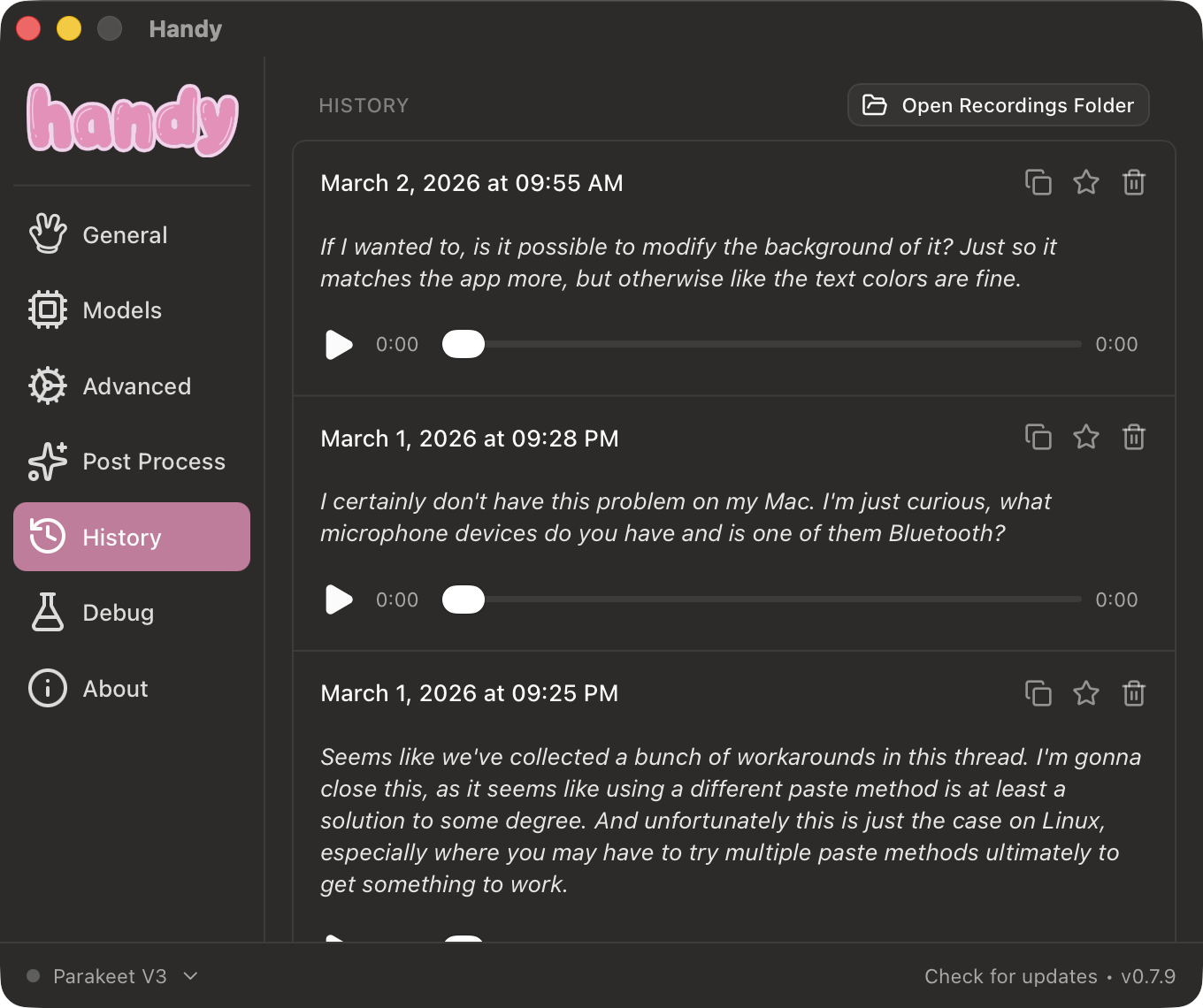
The History tab shows all your past transcriptions. Access it from the sidebar in Handy’s settings window.
Each entry shows the timestamp, the transcribed text, and an audio player to play back the original recording. You can copy any transcription to your clipboard, star it to prevent auto-deletion, or delete it entirely. Use the button at the top of the History tab to open the recordings folder on disk.
Managing History
These settings are in Advanced > History.
History Limit
Set the maximum number of history entries to keep. Older entries are removed when the limit is reached. Set this to 0 to disable history entirely
Auto-Delete Recordings
Automatically delete old audio recordings to save disk space. The “Keep latest N” option uses the History Limit value. The other options delete after some timeframe instead of number of recordings.