General
The General settings tab contains your core recording and audio configuration. These are the settings most users will interact with day-to-day.
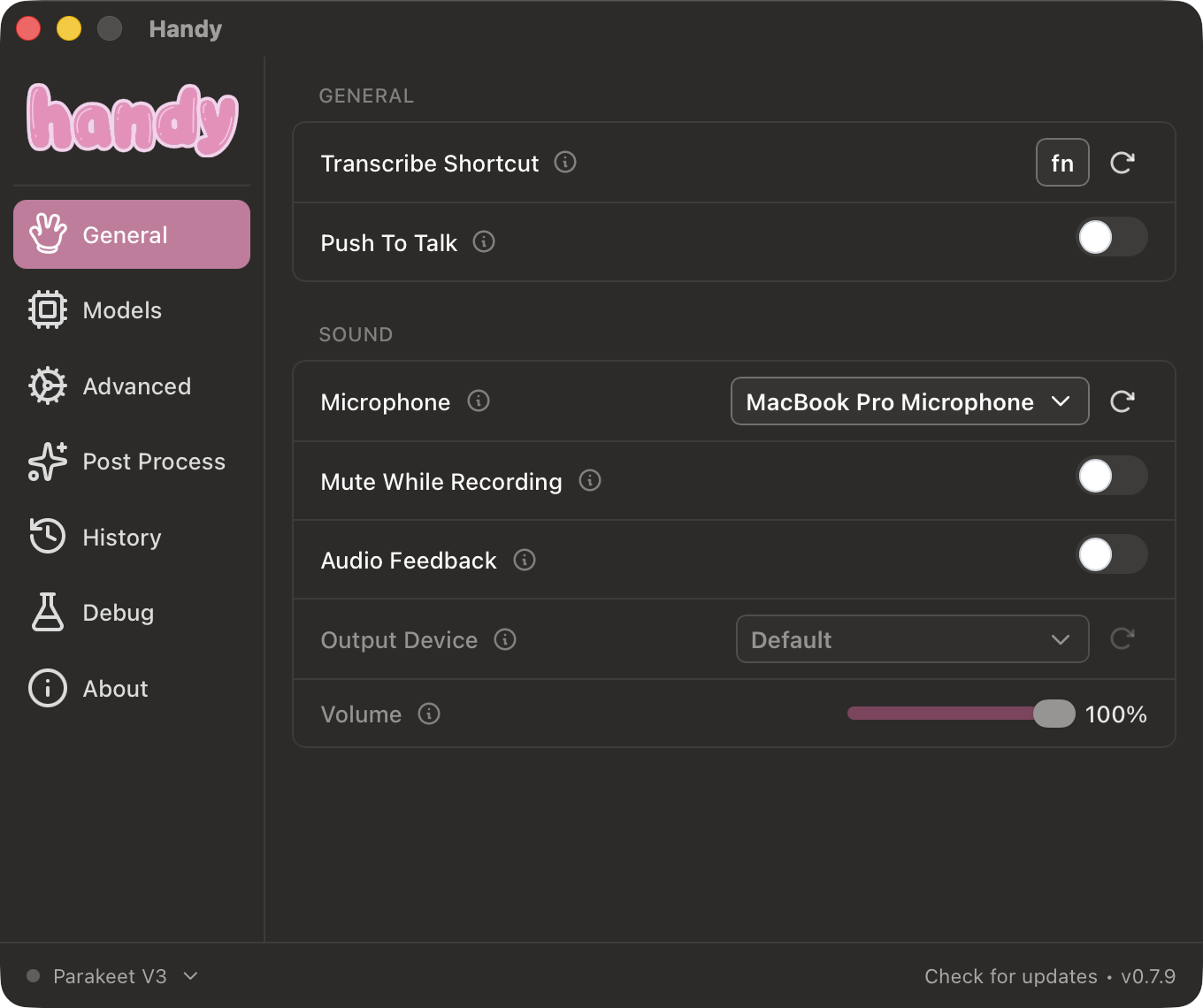
Transcribe Shortcut
The keyboard shortcut used to record and transcribe your voice. In the default push-to-talk mode, hold the shortcut to record and release it to stop. In toggle mode, press once to start and again to stop.
The default shortcut is Option + Space on macOS and Ctrl + Space on Windows/Linux. You can customize this by clicking the shortcut field and pressing your preferred key combination.
On macOS, many people like using the Fn key. On Windows and Linux, shortcuts require at least one modifier key (Ctrl, Alt, Shift) plus a regular key by default. You can enable the experimental Handy Keys implementation in Advanced settings for more flexible bindings.
If you do pick Fn (or Globe), one thing is worth knowing: it only reaches macOS from Apple keyboards — your Mac’s built-in keyboard or an Apple external one. Fn is not part of the standard USB HID keyboard specification, so third-party keyboards handle it entirely in their own firmware and send nothing for Handy to detect. It stays an excellent shortcut if you use Apple keyboards; if you move between an Apple keyboard and a third-party one, build the shortcut from standard modifiers (Ctrl, Option, Shift, Command) or a regular key so it triggers on both.
Push To Talk
Hold the shortcut to record, release to stop. This is the default recording mode and is great for quick dictation. It avoids accidentally leaving the mic on.
Toggle Mode
When Push To Talk is disabled, Handy uses toggle mode instead. Press the shortcut once to start recording, press again to stop and transcribe.
Sound
Microphone
Select which microphone Handy uses for recording. By default, Handy uses your system’s default input device. If you have multiple microphones (USB, Bluetooth, built-in), you can pick a specific one here. On a Macbook we highly recommend using the built in microphone.
Note Bluetooth devices can have issues with Handy. We are working on improving support for Bluetooth microphones/headsets.
Use the refresh button next to the dropdown to rescan for newly connected devices.
Mute While Recording
When enabled, Handy mutes your system audio while recording. This means music or whatever else is playing will temporarily be silenced.
Audio Feedback
When enabled, Handy plays a sound when recording starts and stops. This gives you a clear audio cue that Handy is listening.
Output Device
Choose which audio device plays the feedback sounds. Only available when Audio Feedback is enabled. Use the refresh button to rescan for devices.
Volume
Adjust the volume of the audio feedback sounds. Only available when Audio Feedback is enabled.