Post-Processing
AlphaOverview
Post-processing lets you run your transcription through an AI language model before it gets pasted. This can fix grammar, reformat text, translate, insert punctuation, or apply any custom transformation you want.
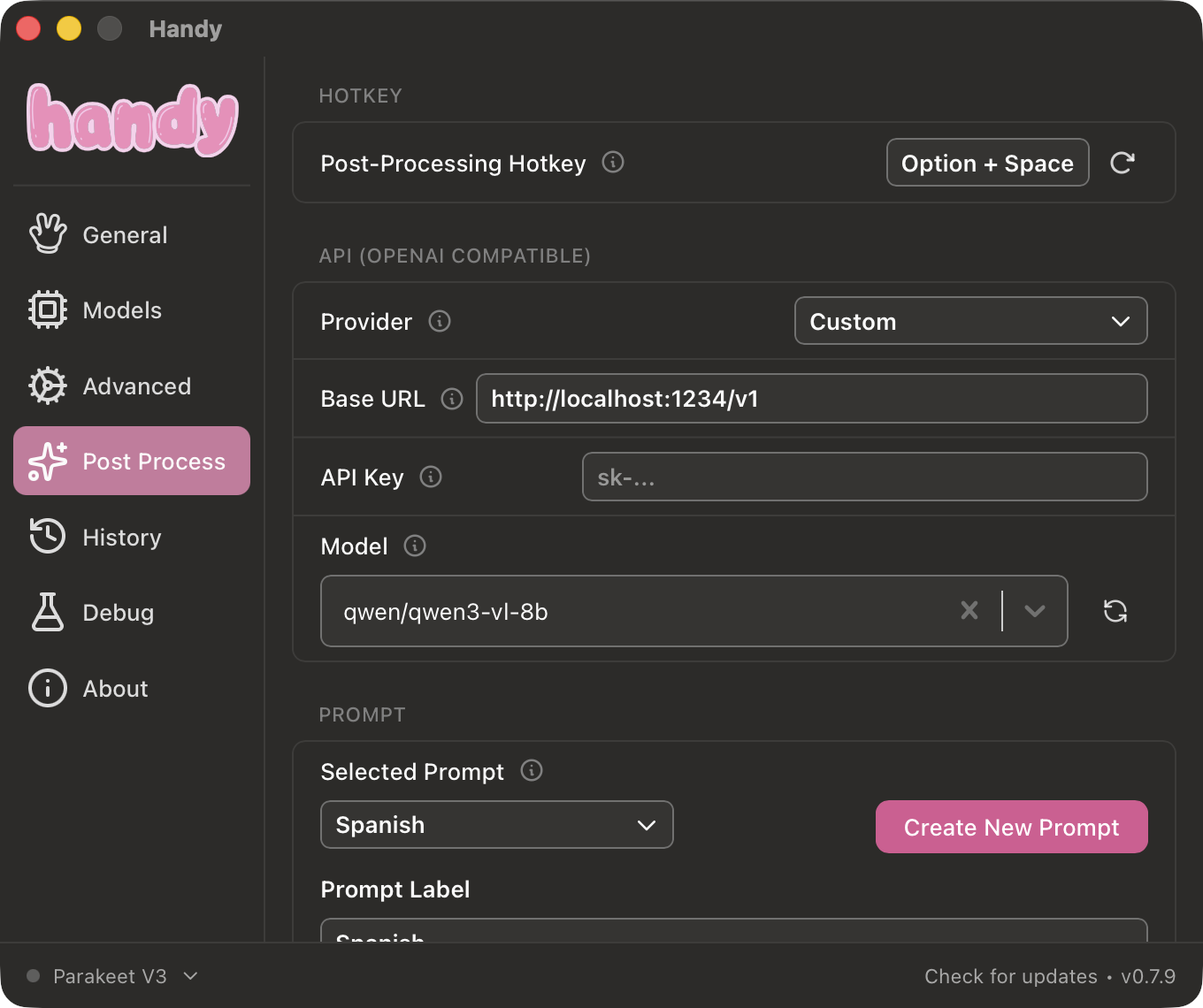
Enabling Post-Processing
Post-processing is behind the experimental features toggle:
- Go to Settings > Advanced > Experimental Features
- Scroll down and enable Post Processing
- A new Post-Processing section will appear in the settings sidebar
- Configure a provider, enter your API key, select a model, and write a prompt
Providers
Handy supports several AI providers for post-processing:
Cloud Providers
| Provider | Notes |
|---|---|
| OpenAI | GPT-4o-mini recommended |
| Anthropic | Claude Haiku recommended |
| OpenRouter | Access many models through a single API key |
| Groq | Very fast inference |
| Cerebras | Fast inference |
| Z.AI | GLM-4.5-Air recommended |
On-Device
| Provider | Requirements |
|---|---|
| Apple Intelligence | macOS with Apple Silicon, macOS 26+ |
Custom Endpoint
| Provider | Notes |
|---|---|
| Custom | Any OpenAI-compatible API endpoint - use this for local LLMs |
Dedicated Hotkey
Post-processing has its own dedicated keyboard shortcut, separate from the normal transcription shortcut. Only this shortcut triggers post-processing. The regular transcription shortcut always gives you plain output. You can customize it in the Post-Processing settings section.
Custom Prompts
You can write custom prompts that tell the AI how to process your text. Use the ${output} template variable to reference the transcription.
Example Prompts
Fix grammar and punctuation:
Fix any grammar or punctuation errors in the following text,
but don't change the meaning or tone: ${output}
Convert to bullet points:
Convert the following text into concise bullet points: ${output}Translate to Spanish:
Translate the following English text to Spanish: ${output}Convert spoken punctuation to symbols:
Convert spoken punctuation words to their symbols (e.g., "period" to ".",
"comma" to ",", "new line" to a line break). Don't change anything else: ${output}
The ${output} Template
The ${output} variable in your prompt is replaced with the raw transcription before being sent to the AI. This lets you place the transcription anywhere in your prompt.
Local LLM Setup
You can use any local LLM server that provides an OpenAI-compatible API.
LM Studio
- Install and start LM Studio
- Load a model and start the local server
- In Handy, set the provider to Custom
- Set the Base URL to
http://localhost:1234/v1 - Select your model and write a prompt
For a detailed step-by-step guide on setting up a local post-processing model with LM Studio (including model configuration and inference settings), see How to Post-Process Your Handy Speech-to-Text Transcripts Locally with LM Studio.
Recommended Models
If you are using cloud based providers, I would try and pick a relatively smart model. Most OpenAI, Claude, and Gemini models will work just fine. If you are using OpenRouter, try to use a model which is >20B in size.
For local models I’ve had decent success with Qwen3 8B and larger. Most models above 8B should do okay, but you cannot expect perfection from them always. You may need to tun your prompt.
Limitations
- Adds latency - Post-processing requires an API round-trip (or local inference time) after transcription completes
- Cloud providers require internet - If you are offline, post-processing will fail (transcription still works)
- Small models may not follow instructions - Models under 3B parameters often ignore prompts or produce unreliable results
- Thinking/reasoning models - Models that include chain-of-thought reasoning may output reasoning tags in the result
Community Prompts
Check Discussion #715 where users share prompts for grammar fixing, punctuation insertion, formatting, and more.